
How to Assess the Risks of Repeated Pop-Ups and Notification Permission Requests on Adult Content Websites
Visiting adult media or free streaming websites often exposes users to aggressive pop-up advertisements. A single click on a video player can suddenly trigger multiple browser windows, lock your screen with alarming virus warnings, or repeatedly demand that you grant notification permissions.
Many users panic when a pop-up claims their device is infected, or they tap “Allow” on a notification prompt just to make the pop-up disappear. Unfortunately, interacting with these deceptive prompts grants background ad networks permission to flood your device with lock-screen notification spam (알림 스팸), even after you close the website.
This guide explains how deceptive pop-up traps operate in Korea, provides an emergency protocol to force-close locked tabs safely without clicking inside the window, and shows you how to revoke push notification permissions across mobile and PC browsers.
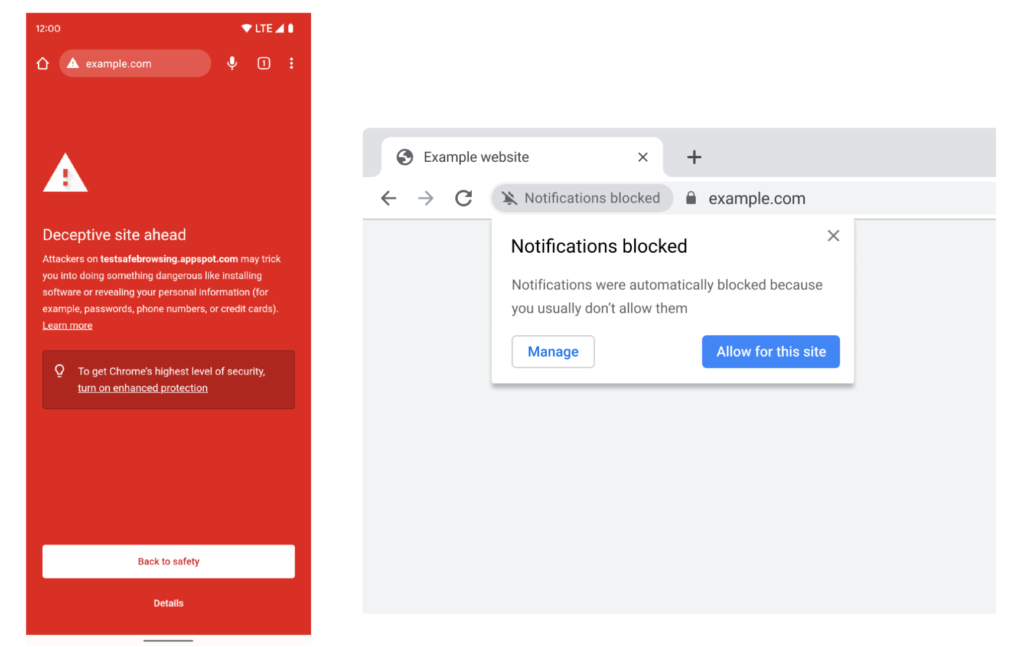
Fake virus alerts and robot checks: Recognizing Korean pop-up traps
Aggressive pop-up scripts rely on psychological manipulation rather than actual security exploits. Understanding these common traps helps you avoid falling for them.
Fake Korean antivirus warnings
In Korea, malicious ad networks frequently design pop-up windows that mimic local security software or portal alerts. You might see a red flashing screen displaying a fake “AhnLab V3 detected 5 viruses!” warning or a fake “Naver account security breach” prompt.
These alerts are entirely fake. Their goal is to scare you into clicking a link that downloads a malicious APK file or redirects you to an aggressive subscription page.
The “Click Allow to prove you are not a robot” trap
Ad networks frequently disguise notification permission prompts (알림 권한) as CAPTCHA checks. The pop-up may display a spinning loading icon alongside text reading: “Click Allow to confirm you are not a robot” or “Click Allow to buffer video.”
Clicking “Allow” (허용) does not unblock the video. Instead, it grants the ad network permanent permission to send push notifications directly to your desktop or mobile notification center, flooding your screen with explicit or scam advertisements even when your browser is closed.
Emergency tab shutdown: How to exit locked pop-ups without clicking
When an aggressive pop-up locks your browser window, clicking anywhere inside the page—including deceptive “Close” or “X” buttons – often triggers hidden click-redirect scripts. You must close the tab without using your mouse inside the webpage body.
Keyboard shortcuts on PC (Ctrl + W)
If a pop-up freezes your current browser tab on Windows, press Ctrl + W (or Cmd + W on Mac) on your physical keyboard. This shortcut immediately terminates the active tab without registering a mouse click on the webpage.
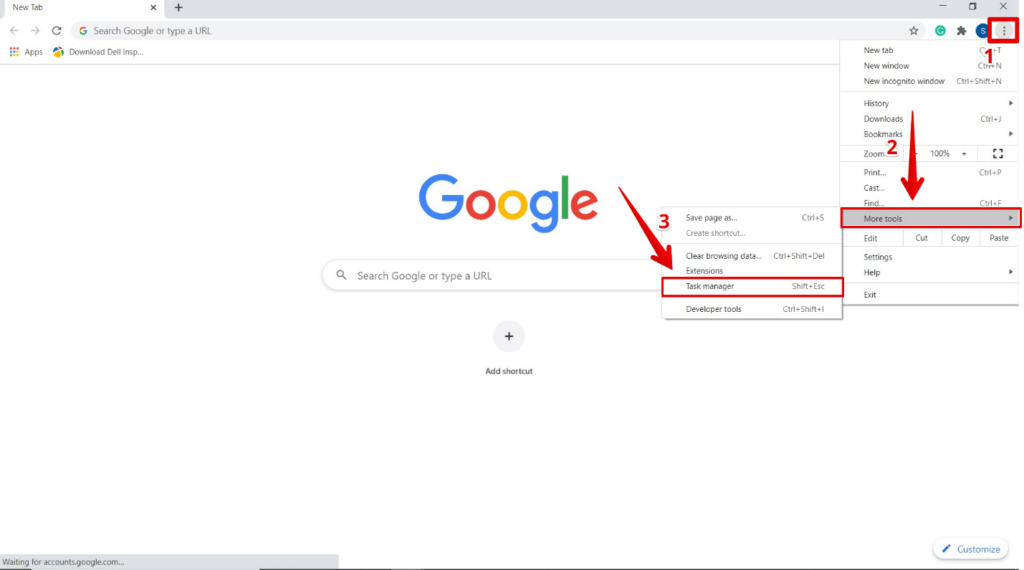
Using the Browser Task Manager (Shift + Esc)
If a pop-up displays an infinite JavaScript alert box that prevents you from closing the tab normally, use your browser’s built-in Task Manager. In Chrome or Naver Whale (네이버 웨일), press Shift + Esc to open the internal Task Manager (작업 관리자). Locate the frozen tab process in the list, select it, and click “End Process.”
Emergency exit on mobile devices
If a pop-up locks your mobile browser on Android or iPhone, do not tap the screen. Swipe up from the bottom of your screen to open the app switcher, then swipe away the browser app entirely to force-kill the process.
Removing push notification spam on mobile and desktop browsers
If you accidentally clicked “Allow” in the past and are now receiving unwanted push notifications on your phone or desktop, you can easily revoke those permissions in your browser settings.
Clearing notification access on Android and Samsung Internet
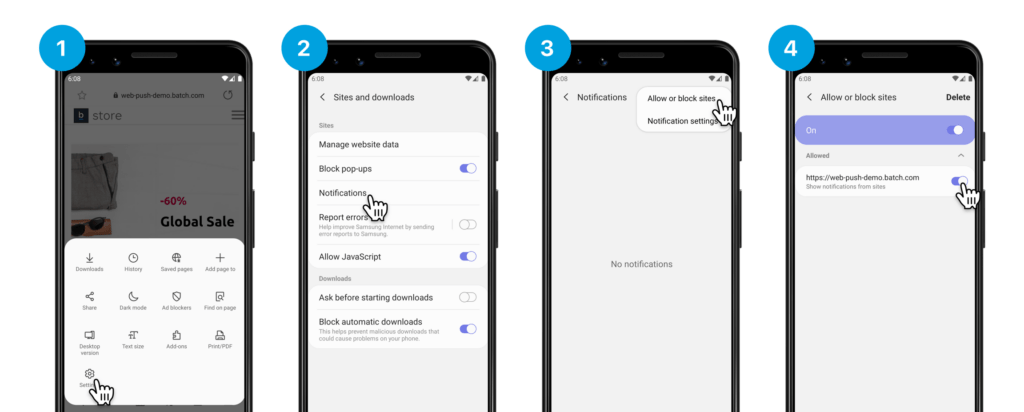
If you use Samsung Internet (삼성 인터넷) on your mobile device, follow these steps to stop push spam:
- Open Samsung Internet and tap the menu icon (three lines) in the bottom right corner.
- Go to Settings -> Sites and downloads -> Notifications.
- Review the list of allowed websites, locate any unrecognized streaming or adult URLs, and tap “Delete” or set their permission to “Block.”
If you use mobile Chrome, go to Settings -> Site Settings -> Notifications, tap the suspicious website under the “Allowed” list, and select “Remove & Reset.”
Revoking permissions on desktop Chrome and Naver Whale
On PC versions of Naver Whale or Chrome, open the browser settings menu and navigate to Privacy & Security -> Site Settings -> Notifications.
Scroll down to the “Allowed to send notifications” section. Locate the unfamiliar website address, click the three dots next to it, and select “Remove.” Once removed, the site loses all ability to push advertisements to your desktop.
4. The incognito isolation strategy: Preventing permanent permission leaks
The most effective way to protect your primary browser profile from notification spam and tracking scripts is to isolate your session using Incognito Mode (시크릿 모드 / 비밀 모드).
Automatic permission wiping
When you visit websites in an Incognito window on Chrome, Naver Whale, or Samsung Internet, the browser operates in a temporary sandbox. Even if you accidentally grant notification permissions or accept cookies during an Incognito session, the browser automatically destroys all session data, cookies, and granted permissions the moment you close the private window.
Account and cookie isolation
Browsing in Incognito Mode ensures that ad networks operating on adult websites cannot access stored cookies or login credentials from your primary Naver or Google profiles. Opening adult content exclusively in private windows eliminates the need for manual cache cleanups and permanently prevents push notification spam from reaching your device.