How Torrent Search Results Redirect Users to Advertising-Based Download Programs Instead of Actual Files
A search result can display the correct filename, size, or search terms and still lead to an advertising page, browser extension, or unwanted software installer. The browser is not necessarily malfunctioning. The page may have been designed to turn a download search into an installation, notification permission, or advertising visit.
A high search position is not proof of safety. In April 2026, Korea’s KISA warned that fake KakaoTalk PC download pages had appeared near the top of Google and Bing results. KISA estimated approximately 560 malicious downloads during the period it monitored and advised users to download software from official websites and verify the domains of advertisements and highly ranked links.
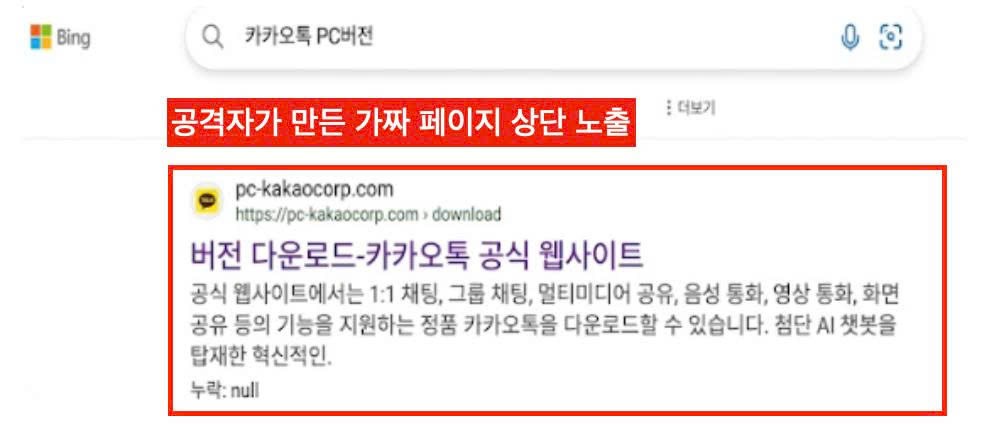
Why the Result Looks Correct but Delivers the Wrong Download
Redirect pages may use search advertisements, SEO manipulation, or domains that resemble a familiar website. After the visitor arrives, the page may open another tab, display several “Download” buttons, show a countdown, or claim that a special program must be installed before the file becomes available.
The installer may be adware rather than traditional malware, but that does not make it harmless. Microsoft describes potentially unwanted applications as software that may slow a device, display unexpected advertising, or install additional software that is more harmful or disruptive.
This technique is not limited to torrent-related searches. KISA has also documented malicious software repositories promoted through search-engine optimization so that they appear to be legitimate utilities. A high ranking, polished design, or correct product name therefore does not establish trustworthiness.
Signs That the Page Is a Redirect Trap
| What you see | Why it matters | Safer response |
|---|---|---|
| The domain differs from the service you expected, contains a misspelling, or adds unrelated words | The page may be impersonating a known service | Leave and locate the verified official website |
| The page requires a download manager, extension, media player, or update | The requested file should not depend on an unknown advertising installer | Close the tab and deny installation permission |
| Several large download buttons, countdowns, pop-ups, or automatically opened tabs appear | The most prominent button may be an advertisement | Use the browser’s own close control; do not click a “Close” button inside the ad |
You expected a metadata file or link but received an .exe, .msi, .dmg, .pkg, or .apk |
The download is an executable program, not an equivalent replacement | Cancel or delete it without opening |
| The page tells you to disable Safe Browsing, Defender, or another warning | The distributor may be attempting to bypass security controls | Stop and leave the protection enabled |
Chrome advises users not to click suspicious program-update or download pop-ups, but to obtain the program from its official website. It also warns users not to ignore Safe Browsing download alerts.
A displayed file list, comments section, or magnet link does not prove that the final content is safe. Those elements can be copied or generated automatically.
The Correct Response Depends on What Already Happened
| Situation | Immediate response |
|---|---|
| You only opened the page and did not download, install, or grant permission | Close it, review the browser’s downloads and site-notification permissions, and watch for unexpected changes |
| A file downloaded but was never opened | Delete it, empty the recycle bin or trash, and scan the download folder with updated security software |
| You ran an installer or approved an extension | Stop using the device for banking and important logins; remove unfamiliar apps or extensions and run a security scan |
| You entered a password | After checking the device, change the password from a clean device and enable two-factor authentication |
| You entered card or banking information | Contact the bank or card issuer immediately and monitor or restrict the account as instructed |
Clearing the browser cache does not remove an installed application. When an installer has run, review installed programs and browser extensions and scan the device. Microsoft recommends running a Quick Scan when malware is suspected and using a deeper scan when concerns remain.
Do not continue shopping, banking, or entering passwords on a device that may be compromised. The FTC also advises changing passwords and enabling two-factor authentication when malware may have given an attacker access to accounts.
Cleaning the Browser and Device
Persistent ads, unfamiliar redirects, an unauthorized search-engine change, or extensions that return after removal can indicate unwanted software. Google lists these behaviors among the signs that Chrome may be affected by malware or unwanted programs.
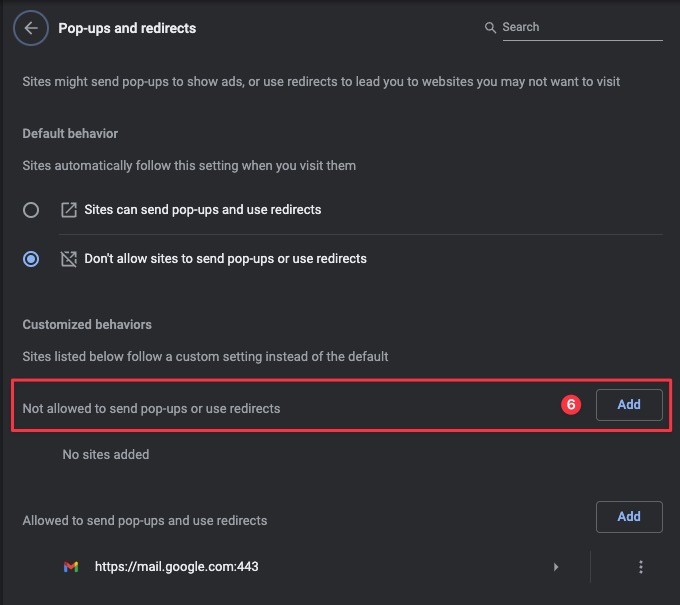
In Chrome, review extensions, notification permissions, and pop-up or redirect permissions. Remove extensions you do not recognize, block unfamiliar sites from sending notifications, and block their pop-ups and redirects. Google recommends checking the computer for unwanted programs before relying only on a browser reset.
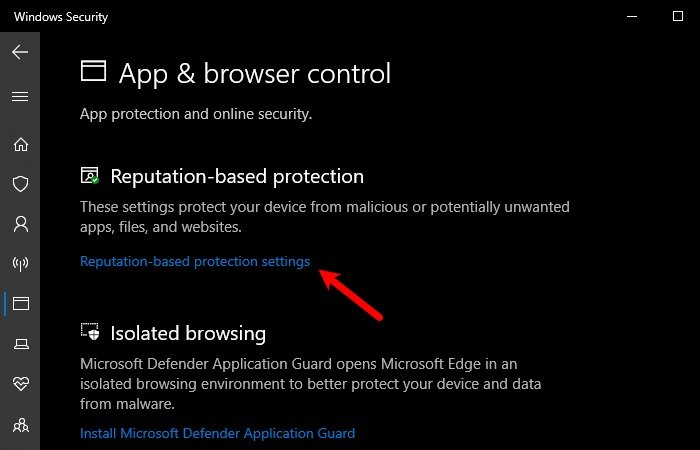
On Windows, open Windows Security → App & browser control → Reputation-based protection and review potentially unwanted app blocking. When available, Microsoft recommends enabling both app blocking and download blocking. If Windows Security detects a PUA, the user may still need to select an action before the item is actually removed.
Korean users who suspect an infection can use Boho/KrCERT’s personal security services or call 118 for advice concerning hacking, spam, and personal-information incidents.
A Safer Download Route for the Next Search
When a publisher legally distributes a file through BitTorrent, obtain the torrent metadata or magnet link from the publisher’s official website, software project, or authorized distributor. Do not search the filename again and assume that the first result represents the same source.
Download programs and updates through their verified official sites or operating-system app stores. Use authorized services for commercial films, music, games, and software. This reduces exposure to impersonation pages and avoids uncertainty over whether the content is being distributed with permission.
Keep the operating system, browser, and security software current. Never turn off a security warning merely because a page claims that doing so is required. KISA advises users to verify domains, use official download channels, enable real-time antivirus monitoring, and keep security definitions updated.
Simple rule: A search engine helps you locate a page; it does not verify the page. When an ordinary file suddenly requires an installer, browser extension, or disabled security protection, stop.